Posts

Showing posts with the label 365

Microsoft Flow PowerApps Projects Time Management Apps - Part 1
Image
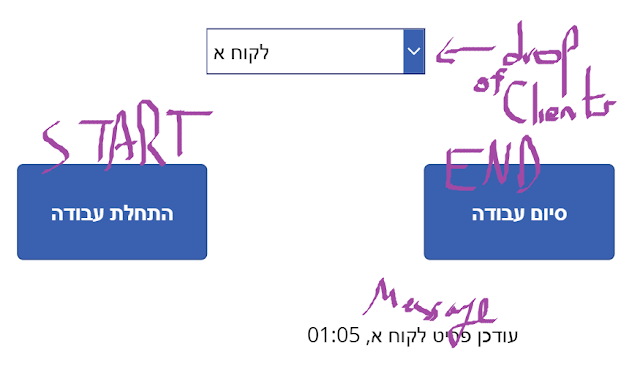
Goal is to be able to manage how much time (in hours and minutes) the company spent each month.  Each Employee should write down when he started and when he finished, and calculate the time.  At each period of time we should be able to get a report of total time spend per client.  Design:  Data will be 2 SharePoint lists, one for clients names, other for the time spent.  List 1 is Title only for client name.  List 2: Title - client name Created - start time Created By - employee EndTime - end time ☺ TotalTime - calculated field for time ( =TEXT(EndTime-Created, "hh:mm") ) App1 - Employee chooses client, has 2 buttons, start and end App2 - Manager can choose month and gets a list of clients with their total time Lets start, SP as states App1 Drop "Items" Connected to SPList and "Value" to Title. Button Start to Flow is very simple, create a sharepoint list item with title of selected client. Since i wanted some message in the app i had the flow to return so...
Microsoft Flow save email attachment with Hebrew Letter to OneDrive or SharePoint

Image
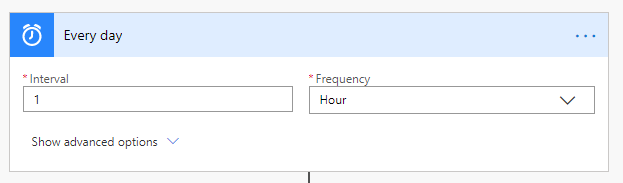
Theoretically you could just use the OOTB template to save a GMAIL to SHAREPOINT But... As always with MS, nothing is really that simple. All you need to break this flow is a special Character... So here starts a journey to clean special characters, and i followed this blog post. My spec was to create some Folder under the default Documents Library of a modern Team Site, and each attachment sent to a specific Gmail account, to be saves in a sub-folder with the sender's name, and another sub-sub-folder with the subject name https://tenant.sharepoint.com/sites/my-team-site/Documents/ emails Attachments/Sender Name/email subject/file name.ext Playing with Flows, I 1st learned that in order for the flow to be triggered WITH attachments you must change " Has Attachments " and " Include Attachments " to "Yes", both under advanced options under "When a new email arrives" event Now we can start talking about the actual flow logic ...

How to get RSS feed to Sharepoint List with Flow Automation

Image
3 simple steps - Recurrence,  RSS, Apply to each with some Composes 1 - Recurrence Just state the recurrence of querying the feed 2 - Use the RSS connector, which actually just get the JSON array of the items :) (at least in my case) 3 - Apply to each with some Composes What can't be seen in the image is the formula, for each composite the formula is the same appart from the json field value, here "publishDate", place that in the "Expression" side of the "add dynamic content" and click "OK" items('Apply to each')?['publishDate'] which apparently can be also be done with item()?['User ID 1'] And create the SP item P.S. In order have distinct value items I set the SP list Title columns to force distinct values, it then shows an error for each attempt to create duplicate value

Adding a Full Task [PlannerTask] to 365 planner

Today i created an angular app to interact with MS 365 Planner. I tried to add a task. The example  @MS - create task works fine { "planId" : "xqQg5FS2LkCp935s-FIFm2QAFkHM" , "bucketId" : "hsOf2dhOJkqyYYZEtdzDe2QAIUCR" , "title" : "Update client list" , "assignments" : { "fbab97d0-4932-4511-b675-204639209557" : { "@odata.type" : "#microsoft.graph.plannerAssignment" , "orderHint" : " !" } }, } Adding a details object was great until i was trying to add some checklist items. My app gave this error [400]: message : " Schema validation has failed. Validation for field 'Title', on entity 'Task' has failed: A non-null value must be specified for this field. " Well, this is the end of the story, since after everything went well in the Graph Explorer my app still gave the same error, until i not...